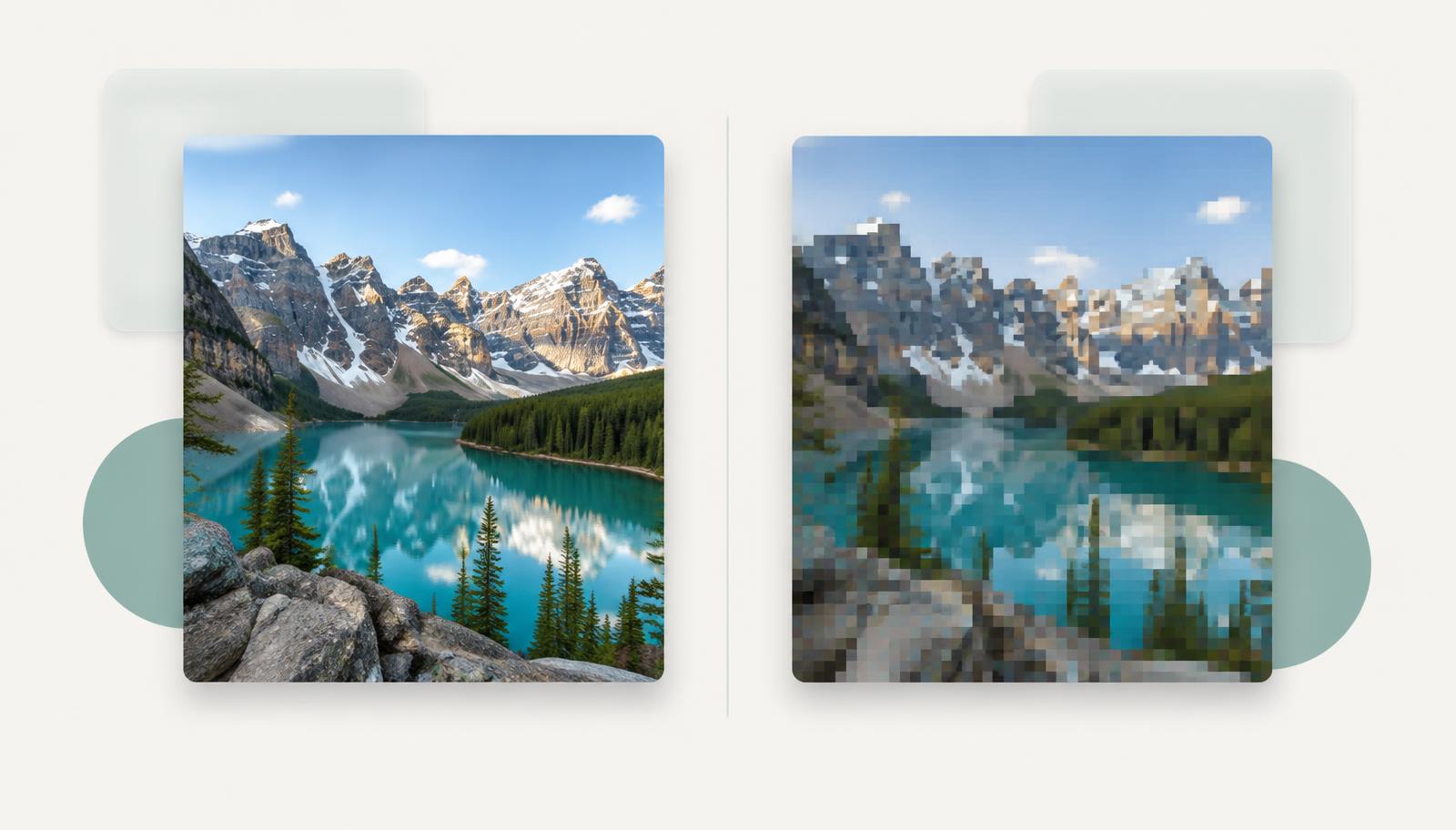
If your image looks worse after compressing it, that's not a bug — it's how most image compression works. To make a file dramatically smaller, the format has to throw away some of the picture's information, and at aggressive settings enough of it goes that you can see the difference.
Quality loss and file size are not opposites — most of what compression removes is detail your eyes were never going to miss. The problems start when the compression goes further than that.
Lossy vs lossless compression
Every common image format falls into one of two groups.
Lossless compression (PNG, and lossless WebP) shrinks a file the way a ZIP file does: it stores the same picture data more efficiently, and nothing is discarded. Unzip it, and you get back the exact original, pixel for pixel. The tradeoff is that lossless compression only saves so much — a detailed photo usually stays large.
Lossy compression (JPEG, and most WebP you'll encounter) goes much further. It removes data the encoder decides your eyes are unlikely to notice, and that data is gone for good. Decompressing the file doesn't restore it — you get a close approximation of the original, not the original. That's why JPEG is so effective at shrinking photos: it typically reduces them by around tenfold, with a loss that most people find acceptable for everyday use.
So the direct answer is: quality decreases after compression because lossy formats trade picture data for file size. The next question is where that trade shows up.
What lossy compression actually throws away
A camera sensor records every pixel in full detail, but a lot of that detail is redundant or visually unimportant. Lossy encoders exploit that in a few specific ways.
Blocks and quantization: where JPEG artifacts come from
JPEG splits the image into small square blocks and describes each one using frequency information — smooth areas as strong signals, fine texture as weak ones. Then comes the key step: quantization, which rounds the weaker signals off. A moderately compressed image looks nearly identical to the original, because the rounding removed only subtleties you can't perceive.
Push the compression harder and the rounding gets coarser. Fine textures blur, edges soften, and the block structure itself starts to show — the "blocky" patches and fuzzy halos around sharp edges you've seen on heavily compressed images. These are compression artifacts, and they appear specifically when compression is heavy. They're also permanent: once the data is quantized away, no setting brings it back.
Color detail is reduced before sharpness is touched
Human vision is much better at noticing changes in brightness than changes in color, so encoders typically cut color resolution first. This is called chroma subsampling, and it's why a compressed photo often stays sharp while subtle color transitions — skin tones, shaded fabric — get slightly muddier. It's a sensible trade for photos, but it's one more reason a compressed file isn't a perfect copy.
The smaller the target, the more the file gives up
Quality loss isn't binary; it's a dial. When you compress an image, the encoder works with a budget of data, and every reduction in that budget forces coarser decisions:
- File size — the budget itself. A smaller target means less data to describe the picture.
- Dimensions — shrinking the image removes pixels outright. This is separate from compression quality, and it's the fastest way to a smaller file — and the hardest to undo visually, because a 2000-pixel image scaled down and then enlarged for print will never recover its original sharpness.
- Format — some formats squeeze the same visual quality into less space than others; a well-encoded WebP generally matches a JPEG at a smaller file size.
- Quality setting — how aggressively fine detail is rounded off.
A realistic target (say, taking a 3 MB photo down to 200 KB) usually lands where the artifacts are invisible at normal viewing size. An extreme target (the same photo down to 30 KB) forces the encoder into visible artifacts or downsizing. If you've ever compressed a file to hit a strict limit and been unhappy with the result, the fix is usually a more forgiving target — or accepting some dimension reduction — not a "better" compression setting.
Re-saving an image repeatedly makes quality worse every time
This is where quality loss usually happens by accident. Copying a JPEG file does nothing to it. But every time a JPEG is decoded and re-encoded — opened in an editor and saved, uploaded to a social platform, passed through a converter, compressed again on top of an already-compressed file — it gets quantized a second time, on top of the first round. Small errors accumulate, and artifacts build up with each generation.
This is called generation loss, and it compounds: an image compressed five separate times can look noticeably worse than one compressed once, even at the same final file size. Practical takeaway: always compress from the original file, once. If a form rejects your compressed image and you need to try a different target, go back to the original and re-run it — don't compress the compressed version again.
How to compress with quality loss you can't see
- Compress once, from the original. Never re-save or re-compress an already-compressed JPEG.
- Let dimensions go only when you have to. Keeping the original width and height means the encoder only adjusts quality — and for most targets, that's enough.
- Keep the original file. The quality removed by lossy compression can't be restored, so the uncompressed original is your only way back.
Where UploadToolkit fits in
If you're working through this on a real file right now: UploadToolkit's compressor runs entirely in your browser — nothing is uploaded to a server — and it compresses once from your original file, letting you keep the original dimensions or allow resizing only when the target demands it. It's free, needs no signup, and works for the common upload targets:
- Compress an image to 100 KB — the default tool on the homepage
- Compress an image to 200 KB — a comfortable target that keeps photos looking natural
- Reduce image size in KB — when you need to pick a custom size
If you're preparing a file for a strict portal or application form, the upload preparation guide covers the requirements side of the problem.
Frequently asked questions
Does compressing an image always reduce its quality?
Only lossy compression does (JPEG, and standard WebP). Lossless formats like PNG compress without removing any data, so the quality is unchanged — they just can't shrink photos as far.
Can I restore the original quality of a compressed image?
No. Lossy compression discards data permanently. Tools that claim to "uncompress" or upscale images are guessing at the missing detail. This is why you should keep the original file before compressing anything.
Why does my image get worse every time I save it as a JPEG?
Each save re-encodes the file and adds another round of compression errors on top of the last — generation loss. Save once from the original; if you need a different file size, start over from the original rather than editing the compressed copy.
What's the difference between a blurry image and a compressed image?
Blur usually comes from resizing (fewer pixels) or an out-of-focus source. Compression artifacts look like blockiness, banding in smooth gradients, or fuzzy halos around edges — they're tied to the quality setting, not the resolution. An image can be resized without visible artifacts, or heavily compressed at full resolution, depending on which knob was turned.